If a provider has given you a host (or server) address, a username and a password, and called them “Xtream codes” or an “Xtream Codes login”, this guide walks you through what those three fields are, how to enter them, and what to do when the login fails. No credentials are published here — you use the ones your own provider issued to you.
What Xtream codes actually are
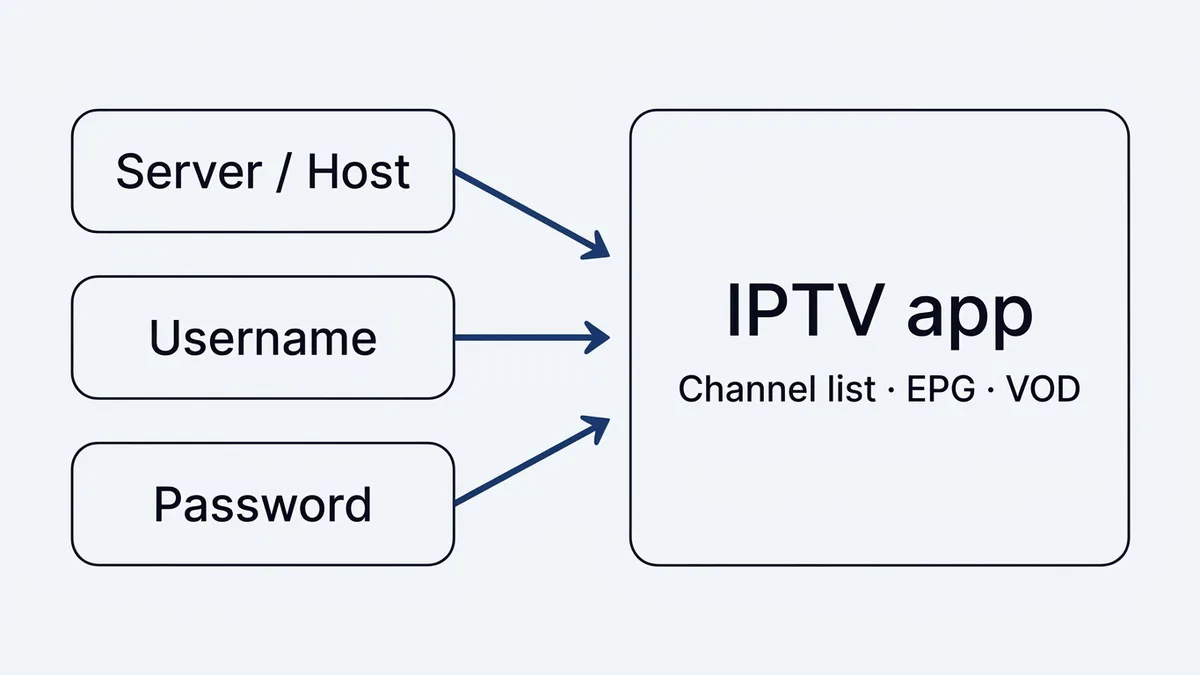
Xtream Codes is the name of a login format used by a large family of IPTV apps and player middleware. Despite the name, it usually has nothing to do with the word “code” in the discount-code sense, and it is not a playlist file.
A single Xtream Codes login is three pieces of information:
- Host / server — the address of the server your service runs on. It may look like
provider-domain.com, sometimes with a port such as:8080, and sometimes with a path such as/player_api.php. Your provider gives you the exact string; do not guess or modify it. - Username — your account name for that service.
- Password — your account password for that service.
The player app talks to that server directly and pulls the channel list, the programme guide (EPG) and any films or series the account is entitled to. One login, many devices: that is the practical advantage. The same host/username/password usually works on an Android TV box, a Fire TV Stick, a phone and a laptop, which is why many people keep one account and sign in on several screens.
Xtream Codes vs M3U playlists
They are different formats and are not interchangeable, but they describe the same kind of thing — how a player gets access to a channel list.
- Xtream Codes login — host + username + password. The app fetches the channel list, EPG and VOD from the server, so categories, catch-up and series metadata usually work well.
- M3U / M3U8 playlist — a single URL to a text file that lists channels. Simple and very widely supported, but the EPG is normally a separate XMLTV URL, and category labels depend on how the list was built.
Many providers supply both: an Xtream login for apps that support it and an M3U link as a fallback for players that only accept a playlist URL. If you are unsure which one you have been given, ask the provider — and check your device before you start, because no password change fixes a format mismatch. Our Stalker vs Xtream Codes comparison covers the three-way picture including Stalker portals.
What you need before you start
- Your host, username and password, exactly as supplied by your provider.
- A device with an IPTV app installed that offers an “Xtream” or “Login” option (more on choosing one below).
- A working internet connection. If the device is on Wi-Fi, try Ethernet or a second test before assuming the account is wrong — a surprising number of “invalid password” reports are actually network problems.
Use only services you are authorised to access. Do not publish your own credentials, and do not reuse another person’s login.
How to set up Xtream Codes on an Android TV box or Android phone
- Open the IPTV app you have installed and choose Xtream Codes / Login (some apps put this under Add profile or Settings → Account type).
- Fill in the three fields: Server/Host, Username, Password. Paste the host exactly — an extra space or a missing protocol prefix is a common cause of failures.
- Leave the remaining fields empty unless your provider specifically gave you values for them. Port, stream format and time offset defaults are usually right.
- Tap Login / Get Channels and give it a few seconds. On a good connection the app loads your categories and the EPG.
- If the channel list is empty but the login succeeded, open the app’s playlist or channel settings and refresh — some players need one manual sync after the first login.
How to set up Xtream Codes on Fire TV
Fire TV uses the same Android apps, so the steps are identical to the Android box above: install the app, pick the Xtream login option, enter host, username and password, and load your channels. If playback stutters, check the app’s hardware-acceleration setting and try the “buffer size” option, if the app offers one. Our Fire TV guide covers the device side in more detail.
How to set up Xtream Codes on iPhone, iPad and Apple TV
On iPhone and iPad, install an app with a Xtream login form and enter the same three details; the flow is identical to Android. On Apple TV, note that many IPTV apps have no Apple TV version or no Xtream option, and the usual workaround is to play through AirPlay from a phone or to use the M3U route if your provider supplied one. See IPTV on Apple TV and IPTV on iPhone for the device-specific picture.
How to set up Xtream Codes on a Smart TV
Samsung and LG smart TVs ship with their own players, which are generally more comfortable with an M3U playlist than with an Xtream login. Check whether your TV’s app store has an IPTV player with Xtream support before you buy a subscription; if not, the realistic options are a streaming stick, a small box, or a laptop or phone cast to the TV. Our Chromecast guide walks through the casting route.
How to set up Xtream Codes on a Windows laptop or Mac
VLC is the most common desktop option and supports both an M3U playlist and a network-stream login. In VLC, open Media → Open Network Stream and paste your M3U link, or use Media → Open File if you downloaded the playlist. For an Xtream login specifically, VLC’s network-stream field accepts the full stream URL your provider gives you — check your provider’s instructions for the exact format. If you would rather test a playlist file before importing it into a player, our M3U checker validates a link and reports what is inside it.
Troubleshooting: why the login fails
“Invalid username or password”
Check for capitalisation, trailing spaces and autocorrect. Passwords are case-sensitive. Copy the details into a plain text note first if you are typing them by hand.
“Unable to connect” / “Server not responding”
This is usually the host string. Check for a wrong port, a missing http:// or https:// prefix, or a path that was truncated. Also confirm the device’s date and time are set automatically — a wrong clock breaks some secure connections.
Login works but the channel list is empty
Refresh the playlist inside the app. If it still fails, the account may not have channels attached, or the EPG may be served from a separate URL that the app needs to be told about.
Channels appear but playback fails or buffers
Look at the stream format setting in the app. Switching between HLS/TS and choosing a different stream (HD/SD) often resolves it. If buffering is constant, test the same login on a second device to separate an account issue from a network or device issue.
Device not registered
That message belongs to Stalker portal logins, not Xtream logins — the two register differently. If you are seeing it, you are probably in the wrong login mode in the app; our Stalker portal setup guide explains the portal flow.
Which app should you use?
Choose an app that clearly offers an Xtream Codes login option, is still being updated, and does not demand unnecessary permissions. Avoid apps that ask for an account before you even reach the login screen, and be cautious with any app that asks you to install a second “helper” or profile outside the normal app store. On Android and Fire TV there is a good choice of established players; on iPhone and iPad the selection is narrower.
A note on free and trial credentials
Plenty of people search for a free Xtream login to try the format before paying anyone. Be realistic about what you get: shared trial lines are frequently limited to a handful of channels, rotate often, and are the most common source of broken logins. The legitimate route is a short trial or a month with a provider you have checked first. If you want to understand a playlist format before committing, testing it with the M3U checker is a safe way to start.
Frequently asked questions
What exactly are Xtream codes?
They are a login format: a server/host address plus a username and password that an IPTV app uses to connect to a provider’s service and load channels, EPG and on-demand content.
Is an Xtream Codes login the same as an M3U playlist?
No. Xtream is a login that apps use to pull the channel list, EPG and VOD from a server. M3U is a playlist file (or URL) listing channels, usually with a separate EPG source. One provider may offer both.
Can I use the same Xtream login on several devices?
Usually yes. The same host, username and password normally work on any device running an app with Xtream support, which is the main practical advantage over a portal login tied to one set-top box.
Why does my login fail even though the password is right?
Most failed logins are not wrong passwords. Look at the host string (wrong prefix, wrong port, stray space), the device clock, and whether you selected the Xtream login mode rather than M3U or portal mode.
Do I need a VPN to use Xtream codes?
Not for the login itself. A VPN affects how your traffic reaches the provider, and in some countries the service or app may be unavailable without one. If you do use one, our VPN guide explains the trade-offs honestly.
Is it legal to use Xtream codes?
Using the login format is legal. It becomes a legal question depending on whether the service behind the login is licensed to distribute the channels it carries. Accessing a service you are not authorised to use is not something we can help with, and you should check your local rules before paying for anything.
Related guides on Xtreamtech
- Stalker vs Xtream Codes — how the two login systems differ, and which fits your device.
- Stalker Portal Setup Guide — the portal/MAC workflow, step by step.
- Stalker Portal Codes — our Stalker credential listings and test reports.
- M3U Checker — validate a playlist link and see what is inside it.
- IPTV Smarters Pro setup — using one of the most common Xtream-capable apps.
