Stalker Portal Setup Guide
Connect a MAG box or compatible portal player, enter the portal URL correctly, and troubleshoot the most common registration and buffering problems.
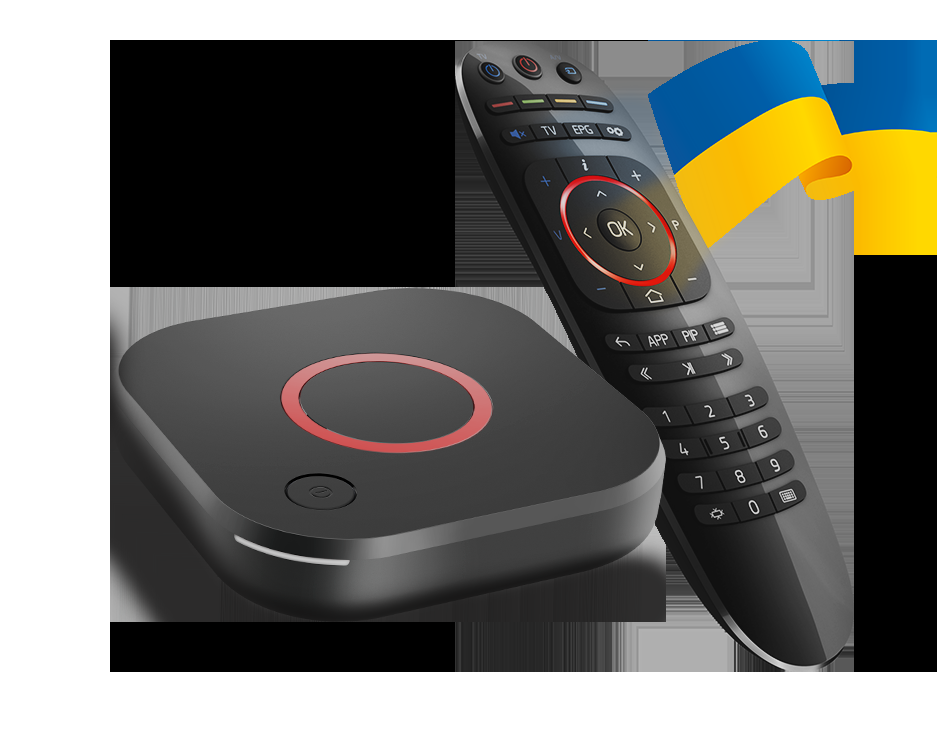
A Stalker portal setup is different from an M3U playlist or an Xtream Codes login. The device contacts a portal URL and identifies itself with a MAC address. This guide explains the connection workflow without publishing or repeating any portal credentials. For currently tested portal listings, see our Stalker portal codes archive.
What you need
- A MAG-style set-top box or a player that explicitly supports Stalker/portal mode.
- An HDMI cable, power adapter and a stable internet connection.
- The exact portal URL supplied by your provider.
- The authorised device MAC address, if the service uses MAC registration.
How to connect a MAG box
- Connect the box to the TV with HDMI and switch the TV to the matching input.
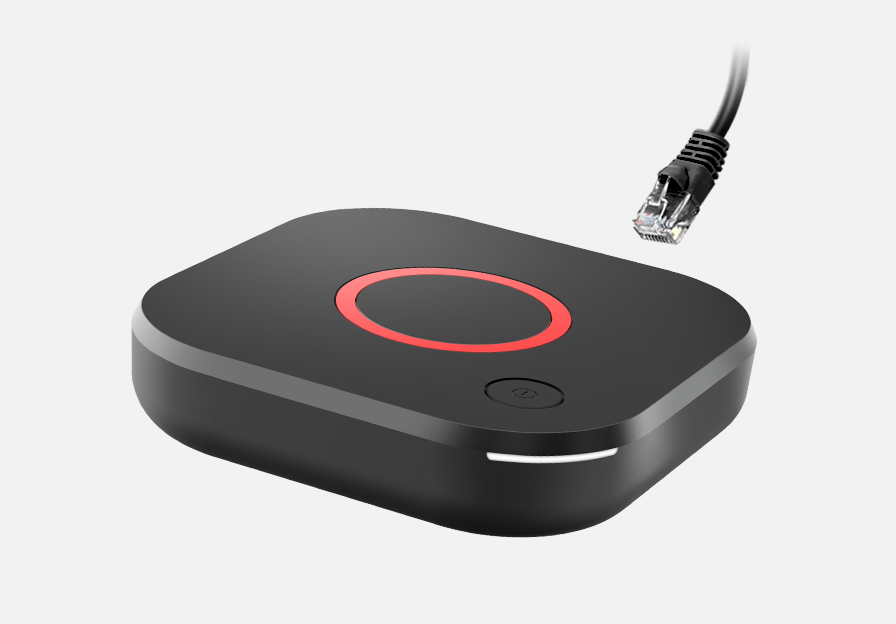
- Prefer Ethernet for initial setup. Wi-Fi can work, but a cable removes one common source of packet loss.
- Open Settings → Servers → Portals (wording can vary by firmware).
- Enter the portal URL exactly, including
http://orhttps://when supplied. Do not add spaces. - Save the profile, return to the portal screen and reboot if the box does not refresh its device identity.
Using a software player
On Android TV, Fire TV or a phone, install a reputable player that offers a portal or Stalker input mode. Do not choose an Xtream or M3U form by mistake. Enter the portal URL, set the app’s device identity only when your authorised provider instructs you to do so, then restart the app.
Fix “device not registered”
- Check the URL character by character and remove trailing spaces.
- Confirm the MAC shown by the box or app matches the authorised MAC format.
- Check date and time settings; incorrect time can break secure connections.
- Restart the device and router, then test once more.
- If registration still fails, ask the provider to confirm activation rather than repeatedly changing the MAC.
Fix buffering after registration
First separate authentication from playback: if the menu loads but streams buffer, the portal login is working. Test Ethernet, reduce other network traffic, and try another stream. A VPN may help when an ISP is interfering with IPTV traffic, but it cannot repair an expired account or an overloaded server.
Frequently asked questions
What is a Stalker portal?
A Stalker portal is middleware that authenticates a compatible device, commonly a MAG box, using a portal URL and a device MAC address.
Can I use a Stalker portal without a MAG box?
Sometimes. Apps such as Smart STB or STB emulators may provide a portal mode, but menus and compatibility vary by device and app.
Why does my MAG box say device not registered?
Check that the portal URL is exact, that the authorised MAC is entered correctly, and that the provider has activated that MAC. Reboot after saving changes.
Does Ethernet help with IPTV buffering?
A wired Ethernet connection can reduce Wi-Fi interference and packet loss, but it cannot fix an expired portal, overloaded server, or ISP congestion.
Image source: Infomir MAG product imagery — official MAG 544 product page.